Getting started with development for the JS library has four main steps:
- Check the prerequisites.
- Include the JS library.
- Pair with the integration server simulator.
- Register your POS software.
For step 4, check the certification criteria for the specific requirements around the POS Information fields and API key configuration: Certification Criteria Document.
For a sample HealthPoint claiming code: JS library API reference. After downloading the zip, unzip it and open the iclient-api folder, then index. Under APIs in the top-left corner, click Classes, then TYRO.IClientWithUI, scroll down to the index and method tabs, and click index.
Before getting started, make sure the following prerequisites are met:
- Use a compatible browser for development. The JS library is only compatible with:
- Google Chrome
- Mozilla Firefox
- Safari
- Microsoft Internet Explorer
- Microsoft Edge
- When using the integration server simulator, you'll also need your allocated Merchant ID (MID) and Terminal ID (TID) combination to pair with it. Reach out to the POS Integration team via email and they'll provide the allocated pairing credentials.
- Headful library
<script type="text/javascript" src="{Base URL}/iclient-with-ui-v1.js"></script>- Headless library
<script type="text/javascript" src="{Base URL}/iclient-v1.js"></script>During testing and development, set the base URL to https://iclientsimulator.test.tyro.com
The simulator uses pre-configured magic values to replicate specific scenarios in the transaction lifecycle — see them here.
Once certified and live, your POS integration uses https://iclient.tyro.com as the base URL.
Pairing uses a MID and TID combination, provided to you by the Tyro POS integration team. The pairing request is initiated from an embedded pairing URL — this configuration page must be embedded in an iframe in the POS — found here. Once you start a pairing request, it needs to be confirmed physically on the terminal, and the pairing page then gets a response confirming the pairing.
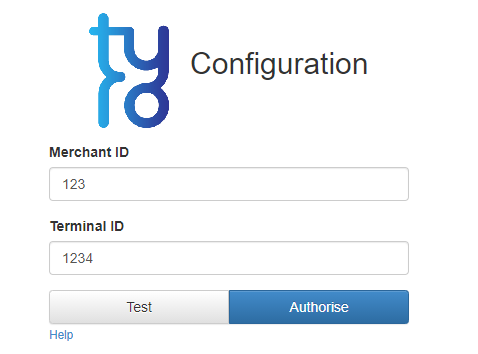
If the user clears local storage in the browser, the pairing details are deleted and the terminal needs to be re-paired.
See Pairing for the full pairing mechanism, including the alternative headless pairing API.
When using the JS library, register your POS software using the POSInformation method, so the correct and relevant information about your POS integration is returned to the Tyro servers in integration requests. This helps Tyro identify integration requests and aids the support team in resolving any issues that come up in production. The specification and example for the headful and headless library are given below.
Specification:
TYRO.IClientWithUI(apiKey, posProductData)
Parameters:
apiKey(String) — the API key provided by Tyro (not validated in test environments).posProductData— an object containing the following properties (final values to be confirmed by Tyro):
| Parameter | Type | Description | Required |
|---|---|---|---|
posProductVendor | String | Name of your company. | Yes |
posProductName | String | Name of your product. | Yes |
posProductVersion | String | Version of your product. | Yes |
Example:
var iclient = new TYRO.IClientWithUI("apiKey", {posProductVendor: "Awesome POS CO",
posProductName: "AwesomePOS", posProductVersion: "1.0.1"}); Specification:
TYRO.IClient(apiKey, posProductData)
Parameters:
apiKey(String) — the API key provided by Tyro (not validated in test environments).posProductData— an object containing the following properties (final values to be confirmed by Tyro):
| Parameter | Type | Description | Required |
|---|---|---|---|
posProductVendor | String | Name of your company. | Yes |
posProductName | String | Name of your product. | Yes |
posProductVersion | String | Version of your product. | Yes |
All parameters are mandatory.
A JS Fiddle example demonstrating the POS information being set in the method, then retrieved from the iClient object and displayed when the "Show POS Information" button is clicked: