Tyro Connect’s APIs require authentication, and Tyro Connect’s authorisation server uses the OAuth 2.0 Device Code Flow to authenticate POS Instance Connections. App integrations don't use this flow — see client credentials authentication instead.
To get started, you must first request a set of credentials from Tyro Connect, once provided these credentials will contain a client_id.
Each request to a Tyro Connect API is authenticated with a JWT (JSON Web Token). Obtaining a JWT using the Device Code Flow is more complex than the Client Credentials Flow as the POS needs to provide a mechanism allowing the POS to be authorised to access Tyro Connect on behalf of the Merchant.
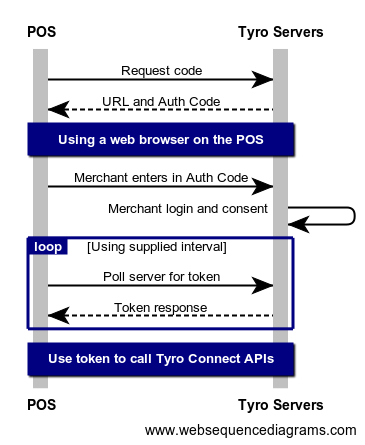
- The credentials we provide you with are private and should be stored securely.
- Each JWT expires after 1 day. Partners are encouraged to monitor the expiry of their token and refresh expired tokens prior to making calls to any of the APIs.
The POS first makes a request to the https://auth.connect.tyro.com/oauth/device/code endpoint of the authorisation server.
- https://auth.connect.tyro.com/oauth/device/code
- curl
- C#
- Node.js
curl -i -X POST \
  https://auth.connect.tyro.com/oauth/device/code \
  -H 'Content-Type: application/x-www-form-urlencoded' \
  -d client_id=string \
  -d scope=offline_access \
  -d audience=https://pos.connect.tyro
A successful response contains:
verification_uri: This is the URL the user should visit to authorize the POS.user_code: The POS needs to prompt the user to enter this code into the form on theverification_uripage.interval: Indicates the interval (in seconds) at which the POS should poll the token URL to request a token.device_code: This parameter must be passed as part of the polling request, in the next step of authentication.verification_uri_complete: This is the URL the user should visit to authorize the POS with the device code prepopulated for them. Use this URL if you can open it directly in a browser for the user to just log in.
The next step is to prompt the user to open a web browser, this can be on their mobile device or on the POS itself.
The user then needs to visit the verification_uri that is part of the response in Step 1.
Lastly the user needs to enter the user_code onto the page.
Using the device_code from the response in Step 1 poll the https://auth.connect.tyro.com/oauth/token endpoint while waiting for the the user to complete Step 2.
- https://auth.connect.tyro.com/oauth/token
- curl
- C#
- Node.js
curl -i -X POST \
  https://auth.connect.tyro.com/oauth/token \
  -H 'Content-Type: application/x-www-form-urlencoded' \
  -d client_id=string \
  -d grant_type=urn:ietf:params:oauth:grant-type:device_code \
  -d audience=https://pos.connect.tyro \
-d device_code=stringPlease respect the polling interval. The response from the call to https://auth.connect.tyro.com/oauth/device/code endpoint will contain an interval field. Please make sure to wait this long between polling requests.
A successful response contains:
access_token: This is the JWT token that you will use to make authenticated requests to Tyro Connect. You must pass the retrieved Access Token as a Bearer token in the Authorization header of your Tyro Connect REST API request.refresh_token: This is the token that can be used to obtain a newaccess_tokenafter the previous one has expired. See Step 4 for more details.token_type: This value is alwaysBearer.expires_in: This is the number of seconds until the Access Token expires. Please use this value to determine when to request a newaccess_tokenand to respect the rate limits of the authorisation server.
When an access token expires rather than prompting the merchant every day to enter a code into a website it is much easier to programmatically generate a new Access Token using a Refresh Token.
This can be done by making a call to the https://auth.connect.tyro.com/oauth/token endpoint using the Refresh Token that is part of the response in Step 3:
- https://auth.connect.tyro.com/oauth/token
- curl
- C#
- Node.js
curl -i -X POST \
  https://auth.connect.tyro.com/oauth/token \
  -H 'Content-Type: application/x-www-form-urlencoded' \
  -d client_id=string \
  -d grant_type=refresh_token \
  -d refresh_token=string
A successful response contains:
access_token: This is the JWT token that you will use to make authenticated requests to Tyro Connect. You must pass the retrieved Access Token as a Bearer token in the Authorization header of your Tyro Connect REST API request.token_type: This value is alwaysBearer.expires_in: This is the number of seconds until the Access Token expires. The default value is 86400 seconds.