Multi-merchant terminals let a single Tyro terminal be shared across several merchant IDs (MIDs) — predominantly a health-industry use case, where several health service providers (each with their own MID) share one EFTPOS terminal, and practice management software needs to route each transaction or claim to the correct provider's bank account without the practice having to manually transfer funds afterwards.
A merchant group is the account-level configuration that makes this possible: instead of the usual case where a location has exactly one MID and only that MID is allocated to its terminals, every MID under a merchant group account is allocated to every terminal on that account.
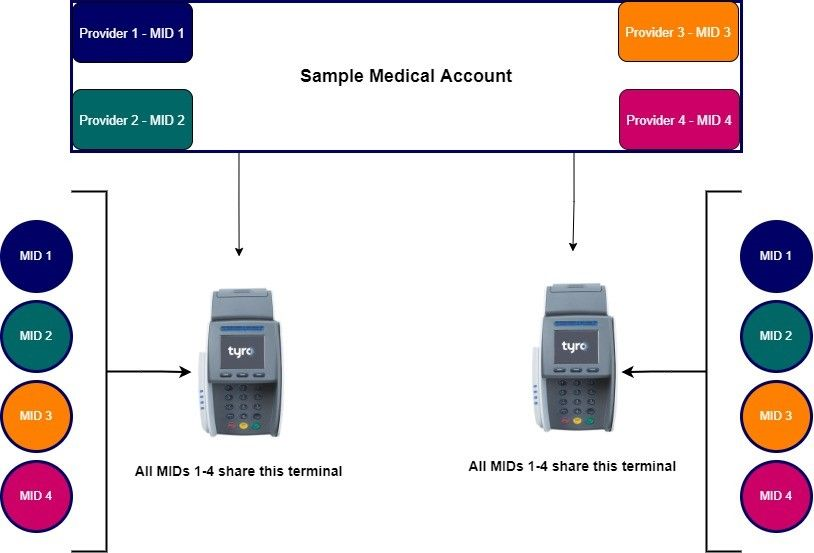
The merchant's account must be set up as a merchant group for multi-merchant to work — this is a Tyro and merchant responsibility; no action is required from the POS partner. Without it, a terminal simply won't have any MID available on it other than the one already allocated to that location.
Before you begin, check the certification criteria: Certification Criteria for iClient Health.
| Parameter | Type | Description |
|---|---|---|
mid | Integer | The Tyro merchant ID. |
tid | Integer | The Tyro terminal ID. |
These parameters are present in the requestParams object of every transaction-initiating function — initiatePurchase, initiateRefund, initiateOpenTab, initiateOpenPreAuth, initiateIncrementPreAuth, completePreAuth, reconciliationReport, and terminal-management functions such as getConfig and terminalInfo. See each feature's own page for its full request parameter table: Payment, cashout and refund, Bar tabs, Pre-authorisation, and Reports.
They're also present on the JS library's HealthPoint claim and Medicare EasyClaim functions — initiateHealthPointClaim, cancelHealthPointClaim, initiateHealthPointRebateEstimate, initiateFullyPaidEasyclaim, initiatePartPaidEasyclaim, and initiateBulkBillEasyclaim — so a practice management system can route a claim to whichever health service provider's MID it's for, the same way it routes a purchase or refund.
mid and tid are also present in the options object of manualSettlement, where they're required rather than optional — see Manual settlement:
| Parameter | Type | Description | Required |
|---|---|---|---|
mid | Integer | Override the configured mid for multi-merchant terminals, or if your browser does not support local storage. | Yes |
tid | Integer | Override the configured tid for multi-merchant terminals or if your browser does not support local storage. | Yes |
var iclient = new TYRO.IClientWithUI(apiKey, posProductInfo);
var merchantId = undefined;
var terminalId = undefined;
var integrationKey = undefined;
var merchantIdTransact = $("#merchantIdTransaction").val();
var terminalIdTransact = $("#terminalIdTransaction").val();
var integrationKeyTransact = $("#integKeyTransaction").val();

function purchase() {
    reset();
var merchantIdTransact = $("#merchantIdTransaction").val();
var terminalIdTransact = $("#terminalIdTransaction").val();
var integrationKeyTransact = $("#integKeyTransaction").val();
    doPurchase($("#amount").val(),merchantIdTransact,terminalIdTransact,integrationKeyTransact);
}

function doPurchase(amount,merchantIdTransact,terminalIdTransact,integrationKeyTransact) {

    iclient.initiatePurchase({
        amount: amount,
        cashout: "0",
        integratedReceipt: true,
        mid: merchantIdTransact,
        tid: terminalIdTransact,
        integrationKey: integrationKeyTransact
    }, {
        receiptCallback: receiptCallbackImpl,
        transactionCompleteCallback: transactionCompleteCallbackImpl
    });

}Once the request is received and processed by the terminal, the response comes back through the same callback as the function normally uses — no additional steps are required for multi-merchant. See that function's own page for how to handle its response.
JS Fiddle demo — pair your terminal using your MID and TID; any MID-TID-integration key combination can then be used to initiate a transaction by entering it in the "Transaction Merchant ID", "Transaction Terminal ID", and "Transaction Integration Key" fields.
Don't click Save if you make changes in the JS Fiddle — click Run instead. Clicking Save may break the fiddle's functionality.